Showing posts with label Tips/Tricks. Show all posts

Friday, 23 August 2013

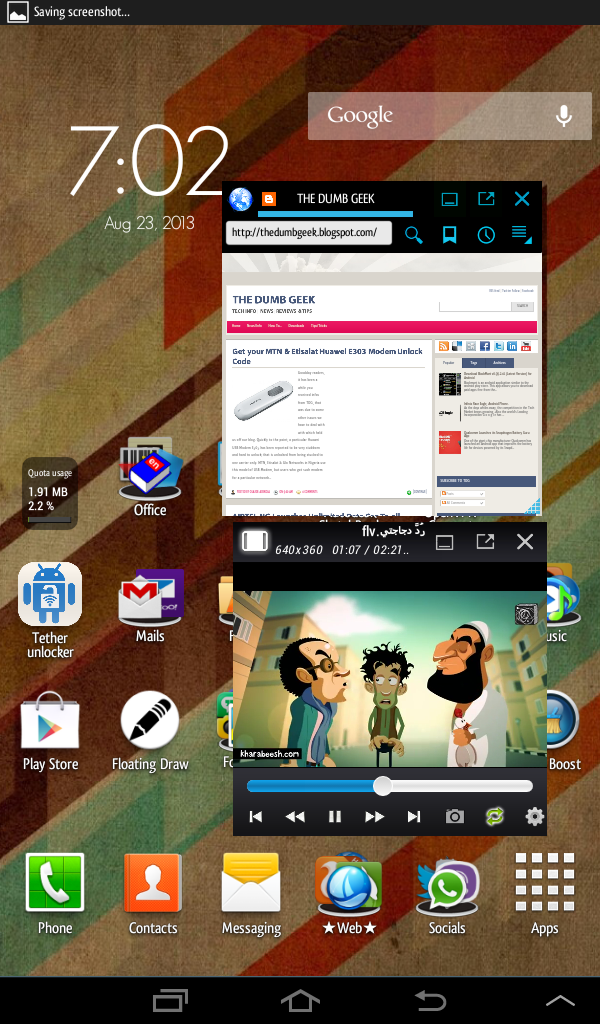
There was a time I read about a Samsung device having a feature called "Split Screen" A feature that allows user do some things, say :Browsing and watching movie at the same time: Then, I was like, damn, Thats cool, yeah! So now, even tho I use a SGT2. I still havnt seen that feature. But now, I think, almost EVERY ANDROID DEVICE can have that feature. Yes! But how?
...
There are these two apps from the same Developer - GPC
Gplayer & Floating Browser.

These two apps can perform their funtion while floating on the screen of your device. You can resize them, move them to a particular place, do some other stuffs while they just do their work.

So visit the Playstore and get the following apps.
Gplayer - https://play.google.com/store/apps/details?id=gpc.myweb.hinet.net.PopupVideo&hl=en

Floating app - https://play.google.com/store/apps/details?id=gpc.myweb.hinet.net.PopupWeb&hl=nl

With these two apps, you can watch movies while still surfing the web.

See a screenshot of these apps in action.


The windows can also be resized to anysize to quickly perform another task..

Thanks for checking TDG, Should you have any questions? Use the comment box or reach us using the Contact form on our Blog.
Posted by Unknown On 4:23 pm No comments [CONTINUE]

Friday, 5 July 2013


Goodday readers, it has been a while you received infos from TDG, that was due to some other issues we have to deal with with which held us off our blog.

Quickly to the point, a particular Huawei USB Modem E303 has been reported to be very stubborn and hard to unlock; that is unlocked from being stucked to one carrier only.
MTN, Etisalat & Glo Networks in Nigeria use this model of USB Modem, but users who got such modem for a particular network might have data subscription on another and is not expected to go buy a new modem.

Now, TDG would be willing to give unlock codes to E303 users who wish to unlock their modem for free.! Yes Free. Just use the comment section, drop your Modem IMEI number and we would provide your Unlock Code within the next 24hrs. Thanks for checking...


Posted by Unknown On 9:00 am 16 comments [CONTINUE]

Sunday, 9 June 2013

Never lose your android device...

Today, we would be reviewing a process on how to find back our Stolen/Lost Android device.
And this would be achieved by having the CERBERUS app on our device.

Cerberus is a complete anti-theft application,which can help you recover your misplaced, lost or stolen Android device.

Steps:
1. Download Cerberus Anti Theft from the PlayStore

2. Open the app and sign up with your mail account

3. Do play around in the settings (Sorry, i dont have my device to give screenshots)

But the point where Cerberus works is this;
You can control your device from anywhere online at www.cerberusapp.com

If you find out your phone is missing or misplaced.. Go to www.cerberusapp.com and log in with you details which you used in the cerberus app.

From there you can remotely do the following ;
- Locate and track it using the Google Map
- Start a loud alarm, even if the device is set to silent mode
- Wipe the internal memory and the SD card
- Hide Cerberus from the app drawer
- Lock the device with a code
- Record audio from the microphone
- Take pictures/screenshot using either cameras on your device
- Get a list of last calls sent and received
- Get information about network and operator the device is connected to
- And much more!

Also, Cerberus can also give you an alert if another SIM is used on your phone.. (Alerts would be sent to a number you would have entered in you set-up)

Go try out Cerberus...

Should you need help on a particular app or you need an app to do a particular task but dont know where or what to search for, kindly use the "Contact us" form on our page. And we might help you.

You can watch the video below to see hoe this app works. Thanks to Dailyappshow for the video
Posted by Unknown On 4:48 pm No comments [CONTINUE]

Wednesday, 29 May 2013


"Congratulations on your new Android device" That was how a friend greeted me when i also got my first android phone. So i'm saying same to you if you fall in the New Android User category.

The device is a smartphone, so you the holder gotta be smart too (lol.) Nevermind!
Would like to let you know the device you're having is a very high level of potential in serving.

What do you expect from the Big G.???

Would like to share with you some essential settings and apps you should be having on your device to get you smart on the go.

You would like to the device you have is a power and data hungry beast! Yes, the simple formular is 

Android + Power + Data = Genuis
Android - Power - Date = Toy

Even HTC would state in their manual that you need an unlimited data plan to enjoy their device.

So, you got the phone, data is ready, power is on standby. Lets kick off

Log in your Play store and ready to pimp your smartphone.

Would like to suggest some neccessary setups. (Just an opinion) as you need to save battery life.


1. Brightness : Looking at the "battery use" in android devices, "Screen" seems to have the longest usage bar. Yes, Display, so to save more battery, lets set up some display settings to ease the lynching of the battery life. Leaving the screen backlight at the lowest would be perfect but if your the type that use the phone anywhere (like in the daylight outside) you can set to auto so the sensor can switch between levels in indoor and outdoor situations. Also, untick the "Auto-rotate screen"


2. Sync : Set the sync time intervals to longer time as short sync time can be draining battery real good. You can also choose to sync manually.


3. GPS ; If you're not the type that uses Map all the time, You can de-activate the gps.

4. WiFi : Leaving the wifi on can also hinder long-lasting battery-life. Activate only when needed. There are apps that can manage wifi. Apps can help you switch off the wifi when its not in use.


5. Data : Also, setting the data connection type at lower eg 2G would also do great in saving more battery juice

Ok! For settings, thats a lil you can try out to optimize your device battery life.

Later, i would be sharing tips on how to enhance the BatteryLife/Device with some applications. Stay tuned. Always check here for more tips. (Part 2)

If you enjoyed the tips, pls share with others, like, and comment.
Also, should you have any additional tip and suggestion for us, we'll be very greatful. Kindly use the form on the right hand pane to reach us.


Posted by Unknown On 9:30 am No comments [CONTINUE]
How to autohide your taskbar on windows 7

We’ll be looking at auto-hiding the taskbar on windows 7 (also works on the Vista )
This is a very simple task to a lot of people but for the sake of few who can’t, because it took me a while too to get it. Since then, I prefer that auto-hide gesture.

So here are the steps:

I’ ll assume you’ve booted up your pc to the desktop.
Now look at the task bar on the base of your monitor


Right click on any blank space on the task bar (where theres no icon)

                               A menu list pops out, select “Properties”


A setting dialogue window opens
Just tick the "Auto-hide the task bar" click on apply!


There you go!!! Taskbar Hidden.


To see the taskbar, simply move the mouse-arrow the taskbar location and it should pop out and back in when you remove the mouse-arrow.


Please, comment or share if this helped you.
Posted by Unknown On 8:31 am No comments [CONTINUE]
I was just cruising this cool afternoon when when i saw this video on Youtube by Snapdragon; a giant CPU manufacturer. So i decided to share with my readers.

The video was illustrated to show how Chipset works and how much power they consume which leaves effects on the battery life of our smartphones. A device (dont know which device) having the Dual-Core Snapdragon Chipset on was compared with a competitor having a Quad-Core chipset. Both were connected to a power monitor.

The smartphone batteries were bypassed. That way, both phones are fed the same voltage (3.7 volts). The boxes are also able to measure the current passing through the phones. A call was then placed to each phone so you can see how much current is being used during the phones calls. With the displays on and off, the Qualcomm Snapdragon smartphone is the least power-hungry in the modem department compare to its competitor. 

Watch the video and see the results for yourself.


Video Credits - Snapdragon Processors
Posted by Unknown On 7:43 am No comments [CONTINUE]

Sunday, 26 May 2013


Blackmart is an android application similar to the android play store. This app allows you to download paid apps free from there their servers. Blackmart has an excellent interface that lets you search and find apps and games easily. Even though downloads are reported not to be very fast, the downloads are stable. Blackmart has filter functions to help you sort apps by name, price, size, dates. value and gives the ability to uninstall applications also to make backups of them.


A newer version has being released recently with thousands of new features and a new UI including some extra settings along with some Updated apps and games, all for free. Based on Ice Cream Sandwich (ICS), its really fast and attractive.

All apps downloaded from the application are stored in the application folder which you can get access to using various file-manager.


Posted by Unknown On 5:17 pm 3 comments [CONTINUE]

Wednesday, 22 May 2013


Whenever I boot up my pc, I remember an event I need to attend to at a later time and I’ll be like " I’ll leave this place when its 02:00pm " Guess what, I’ll end up leaving when its 05:00pm.

Now, I believe there are a lot who happens to experience that. Right?
Lets see how Atomic Alarm Clock can help…

Atomic Alarm Clock is a pc software to alert you about events in different alarms and can replace/customize your Windows tray clock using different skins. Atomic Alarm Clock can also serve as time synchronizer. See the time, seconds, day, date, countdowns, percentage of ram memory used including the pc UpTime in various skin designs. The program includes multilingual interface support! Atomic Alarm Clock is built into your PC time and customized.

Features:
* Fully automated PC usage/Project tracking software that surveys the time spent on the PC
* Time tracking is the process of recording the time that you or employees work on     various projects or tasks for your customers, your company, or yourself.
* Employee Project Clock is a employee time recording system
* Clock Tray Skins – Advanced replacement for standard Windows tray desktop clock
* Shows current time and date in another time zone, next to your computer desktop clock
* Speaks the time, enhances taskbar desktop clock

OS Compatibility : Windows 2K / XP / 2003 / Vista / Windows 7 / Windows 8
Language : Multilanguage

Find the download link below the post!

<<<< SCREENSHOTS >>>>


 VARIOUS SKIN TO SELECT FROM


 LIST OF EVENTS TO BE ALERTED

 CUSTOMIZED CLOCK TRAY


ALARM TIME/DURATION SETUP


THE ALARM GOES OFF!!!


Thanks for reading and dont forget to share!!!
Posted by Unknown On 8:48 am 2 comments [CONTINUE]

Tuesday, 21 May 2013


Android is an open OS for touch screen phones (Like you don’t know this before.. Lol)

Ok, going on to the order of the day. Downloading android apps from the play store is simple and easy, but most of the time, when we are on a computer, we would still need to download apps from our smartphones. Well, life’s becoming a whole lot easier and simpler every minute.
Today , we would be looking at how we can give our devices / data-bundle a break and download Play Store apps using our computer.
We would be using a pc utility; Real APK Leecher.
Real APK Leecher is a PC application that allows android users download apps from the Play Storedirectly to their computer hard drives.


Steps to Download APKs to your PC.

  • Download Real APK Leecher here.
  • Extract the zip which would contain 1Folder and 3Files
  • Run the Real APK Leecher file
A configure window like the image below should open


     Fill in your your gmail account, password & device ID 
How to get your device ID : Dial  * # * # 8 2 5 5 # * # * on your device, Scroll a bit down to retrieve your Device ID.

     Fill the details and save. A window like the image below would open. Now thats the Play Ground in the Play Store *lol*


 Search what ever app you need in the search column . You should get results like in the Play Store. Right-click on the preferred app and select download. Files would be saved to the folder set in the first setting window

 You can now transfer the APK to your phone via USB or Bluetooth.

Thanks for reading. Should you not understand any part of this tutorial. Just comment below the issue and we run down to your aid.
     
    Dont forget to share with others.

Posted by Unknown On 9:49 am No comments [CONTINUE]

Monday, 20 May 2013


The Blackberry Playbook is a tablet by RIM. Its has got some cool features and specs. Since Blackberry smartphones and gadgets are prone to getting stuck and others resulting to Hard Reseting them, lets see how the action can be performed on the above device. On the blackberry smartphones, just a Battery Pull would do but since the BlackBerry PlayBook does not have a removable battery it makes it impossible to perform a true hard reset of pulling the battery like you can on BlackBerry smartphones. The device has got a Power Button, Volume Up, Play/Pause Button and the Volume Down button. Some of these keys combination will perform a hardware reboot instead of a software reset on the BlackBerry PlayBook. 


To perform a hard reset on the BlackBerry PlayBook:
 Hold down the volume up key, volume down key, and power button at the same time and hold it for about 15 seconds. TIP: Its easier if you hit the volume up key then the volume down key and then the power key.

There you go!
Thanks for checking out our Blog... Pls leave a comment or share using the social networks.


Posted by Unknown On 12:24 pm No comments [CONTINUE]


Welcome to another exciting review.

I am a big Android fan. With my device. I have the world at a fingersnap. I’m a tech savvy so I rooted my device. I rooted so I can have full functionality of my device, since then, I never regretted it. I try out new Custom ROMS, Application, etc. At first when I started, after flashing a new rom which probably wipes out the entire device. Even though I have backups (APKs) of my applications. I would have to start installing one after the other. It used to be very annoying and boring because I have to sit and watch my phone install up-to 60 applications. Then, I was random-surfing one day and came across this software;    MOBILEGO!


Mobile go was created by Wondershare. Its available for Android and iOS.

- This Android phone manager gives you a simple, smart interface to plug in and go. It instantly recognizes and remembers more than 970 Android devices as soon as you plug in. (Unlimited devices supported in Wi-Fi mode.) It’s a big screen, bird’s eye view of your phone, your life – so you get more done.


Let’s talk about few things MobileGo would do;

Back it all up or Restore with a Click
Tired of randomly losing stuff from your phone? Maybe you just want to make extra room for more media? With MobileGo, you can 
back up everything including contacts, SMS, apps, catalogs, etc. Vice versa, you can restore all or selected backed-up files to your Android phone with a click.
 
Music, Photos and Video on the Go
Forget to move your downloaded shows, music, whatever the night before and now you’re stuck in line somewhere staring at a blank screen? Wanna enjoy media anywhere? MobileGo for Android helps you push music, photo, and video easily to and from your androi device.


Transfer Contacts between Symbian, iOS and Android
Got a shiny new mobile device and want to load it with all your old contacts, texts and call history? Maybe it’s one of those older Symbian devices, or a newer iOS or Android device? Or maybe you just want to add your friend’s contacts from their device to yours? Now it’s easier than ever to get it done: simple one click, you can transfer contact list, SMS and call logs between different devices without missing a beat.

Organize Your Apps
Got too many apps that don’t do enough and want to get rid of them in a flash? Maybe you like downloading apps with your PC and want an easier way to transfer them to your phone? MobileGo lets you keep your game status on apps and quickly install/uninstall apps on your device from your PC Moreover, you can export apps to your PC as well.


Seamlessly Send & Reply Texts
Now you can reply and send text messages on your PC without instead of doing it on a tiny four-inch screen. Just get this Android manager to free your hands and text like a champ!

Convert Video and Audio
MobileGo for Android Pro not only helps you push music, photo, and video easily to your phone. Now, the enhanced converter allows you to convert video and music files like AVI, MOV, MKV, FLV, WMV, WMA, AIFF, MKA, etc. to Android-optimized formats and fit your devices. Furthermore, you can even extract audio from a video file.


Sync iTunes Playlist to Android


With the Pro version, you can effortlessly import your iTunes music playlist to Android devices and export music to iTunes library. Just get it now and break down the wall between iTunes and Android.


Import / Export Contacts from/to Outlook/Windows Mail
 
Want to transfer your phone contacts to Outlook and Windows Mail or vice versa? With MobileGo for Android Pro, you can easily import and export contacts to/from Outlook 2003, Outlook 2007, Outlook 2010 and Windows Mail/Windows Address Book.


Download MobileGo here!

Share this with your friends... You can drop a comment if you have a question.


Posted by Unknown On 2:49 am 3 comments [CONTINUE]

Friday, 17 May 2013

                     WELCOME TO THE DUMB GEEK

Goodday!!! We were just curious to know, are you experiencing any problem, issue, bug 

on any of your gadget? You you need tips on how to fix something? You want information 

on a particular subject? We'll love to help you with the little we could. You can contact us 

by either commenting  below or use the Contact Us form on this blog. We'll be glad to 

ease that stress. We are waiting...

You can also contact us on Facebook and Twitter
Posted by Unknown On 3:53 am No comments [CONTINUE]
Watching Youtube videos offline is one thing almost everyone would be willing to do. You got this video you wanna watch and you dont have much time at the moment. Instead, you want to just download it and watch at your free time. Well, never worry. TubeMate would do just that!!!


TubeMate youtube Downloader permits you to acess, watch and download youtube video clips. It is very smart at grabbing videos from youtube. It pops up when you click the Youtube link in any site.

   TubeMate offers :

* Rapidly obtain mode(with a number of associations for any download)* A number of obtain quality options* Track record, multi-download* Continue downloading* Turn to be able to CD (powered through CD Advertising Converter)* Playlist as video/audio(powered through Meridian Player)* Discuss ones online video media confirms by means of Google News, Tweets or maybe e-mail on the tap into of any button* youtube seek in addition to related video clips tips* Save favourite video clips on your youtube bill, generate playlists.


Also watch below, a video of how to use TubeMate.


You can visit Their Official Website for downloads.

Thanks for reading. Pls, share the news with freinds.
Posted by Unknown On 3:34 am 3 comments [CONTINUE]

Thursday, 16 May 2013

RIM has dropped one more of their sleek design devices, the Blackberry Q5. It is a colorful and affordable smartphone with QWERTY Keyboard. Blackberry has said to be working on this Smartphone for the mid-range portfolio of blackberry according to Reports, The device will be avialable In the coming Month.


Below are the Specifications to be expected in the BlackBerry Q5

OS: Blackberry 10 OS
Processor: 1.2 GHz Dual Core Processor
Internal Memory: 8GB
Card Slot: Micro SD upto 64GB
RAM: 2GB


Camera and Video:
Primary Camera: 5MP, 2592х1944 pixels, autofocus
Secondary Camera: 2MP
LED Flash: Yes
Video: Yes 1080p video recording via Primary Cmera and 720p video recording via Secondary Camera


Network and connectivity:
2G: Yes
3G: Yes
4G: Yes
WIFI: Yes
Bluetooth: Yes
GPS: GPS w/ aGPS support
HSPA+ 21Mbps and LTE 50/100Mbps


Body and Display: 
Size: 720X720 Pixels
Screen: 3.1 Inches Display Screen
Color: Red, Black, White and Pink
Dimension: 120mm x 66mm x 10.8mm
Weight: 120 grams
Keyboard: QWERTY


Audio
Alert types Vibration, MP3 
ringtones 
Loudspeaker: Yes
3.5mm jack: Yes


Data
GPRS: Yes
EDGE: Yes
Speed: HSDPA, HSUPA
WLAN: Yes
NFC: Yes
USB: Yes, microUSB v2.0


Battery:
Capacity: Non-Removeable Li-Ion 2180mAh battery


Other Features:
Sensors: Accelerometer, proximity
Messaging: SMS, MMS, Email, Push Email, IM, BBM 6
Browser: HTML5
Radio: TBD
Java Yes, MIDP 2.1
- SNS integration

- BlackBerry maps

- Organizer

- Document viewer

- Photo viewer

- MP3/WMA/WAV/eAAC+ player

- MP4/WMV/H.263/H.264 player

- Voice memo/dial

- Predictive text input


Thanks for reading. Dont forget to use the share buttons.
Posted by Unknown On 11:59 am No comments [CONTINUE]
  • RSS
  • Delicious
  • Digg
  • Facebook
  • Twitter
  • Linkedin
  • Youtube